Introducing SecurityPal MCP Connector: Use Your Security Knowledge, Tasks, and Trust Center From Your AI Assistant
Answering a prospect's security questionnaire means finding the right policy, checking a supporting document, and following up with your team. The SecurityPal MCP connector, now available, lets you bring that work into the AI assistant you already use and also works alongside your other connected apps.
You can search your Knowledge Library, create and update tasks, and work with supported Trust Center actions through natural-language requests.
What is the SecurityPal MCP connector?
The SecurityPal MCP (Model Context Protocol) connector connects SecurityPal AI to the AI assistant your team uses, such as Claude, ChatGPT, or another compatible MCP client. The connection acts as you, so it can only do what your account can do.
What you can do with the connector
Task actions are available to all SecurityPal customers. The actions you can take depend on your SecurityPal permissions and the task type.
How to connect
If you use a company Claude or ChatGPT workspace, check whether your team has already added SecurityPal. If it appears in your workspace, select it and sign in with your own SecurityPal account. If you don’t see it, ask your workspace admin whether it’s available to you.
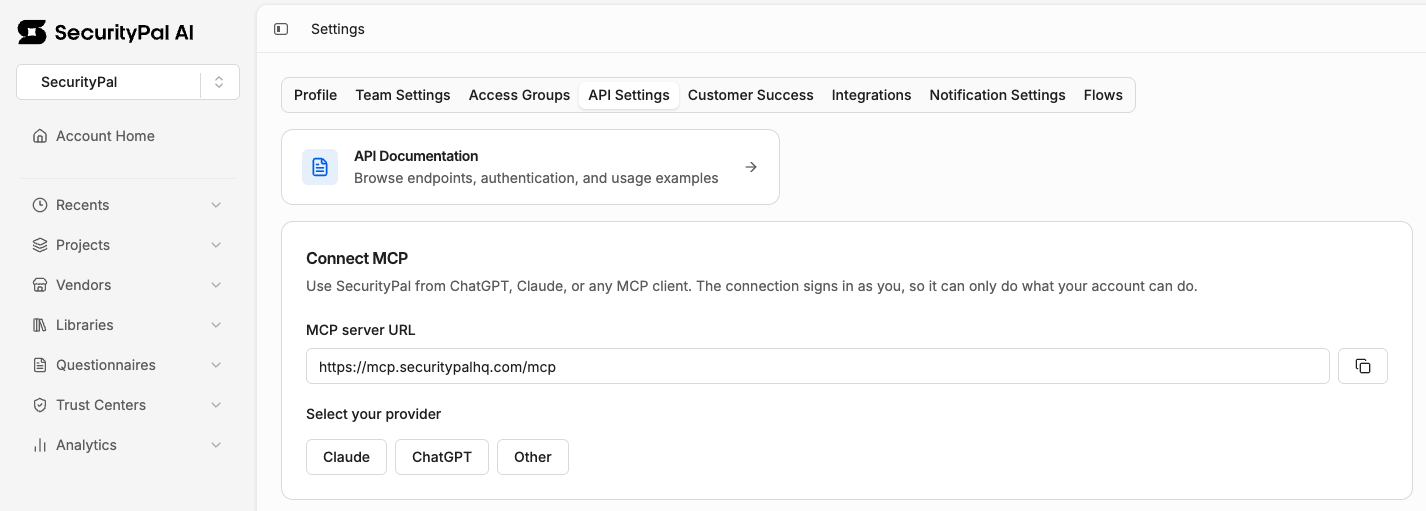
To set up a new connection, open Settings → API Settings → Connect MCP in SecurityPal. Select your provider to see its setup instructions. Open SecurityPal API Settings.
MCP server URL: https://mcp.securitypalhq.com/mcp
Claude
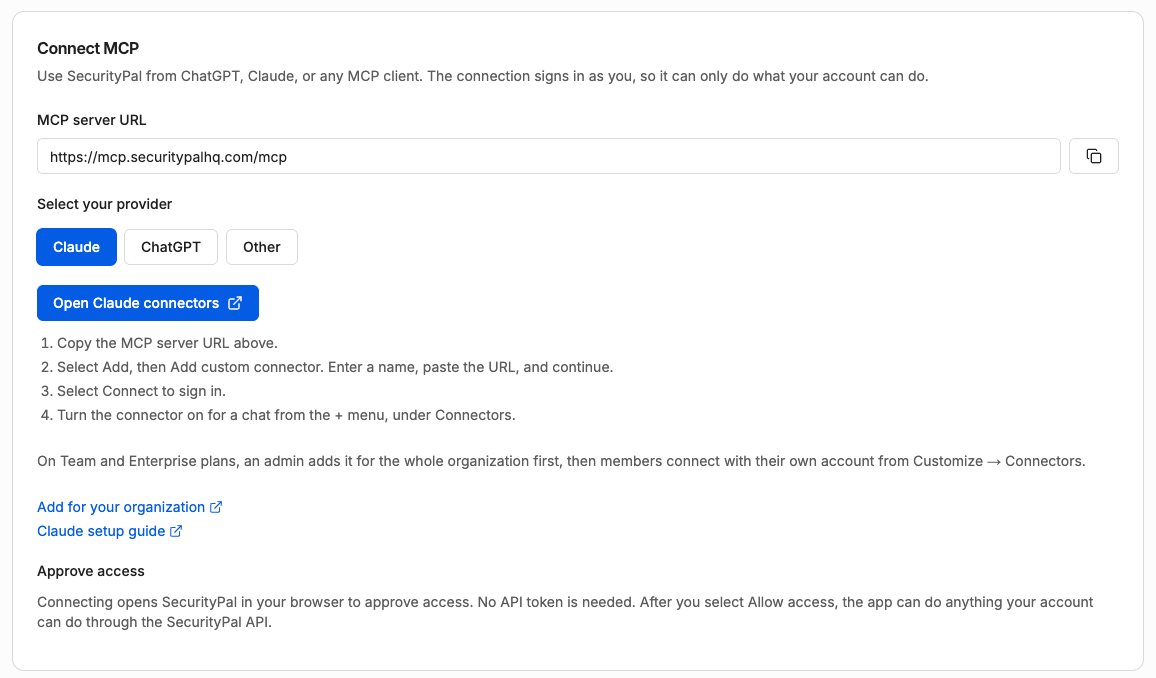
Select Claude, copy the MCP server URL, then select Open Claude connectors.
- In Claude, select Add → Add custom connector.
- Enter a name, paste the SecurityPal MCP server URL, and continue.
- Select Connect, sign in to SecurityPal, then select Allow access.
- Enable the connector for your conversation from the + menu under Connectors.
On Claude Team and Enterprise plans, an administrator adds the connector for the organization first. Members then connect with their own accounts through Customize → Connectors. Claude setup guide.
ChatGPT
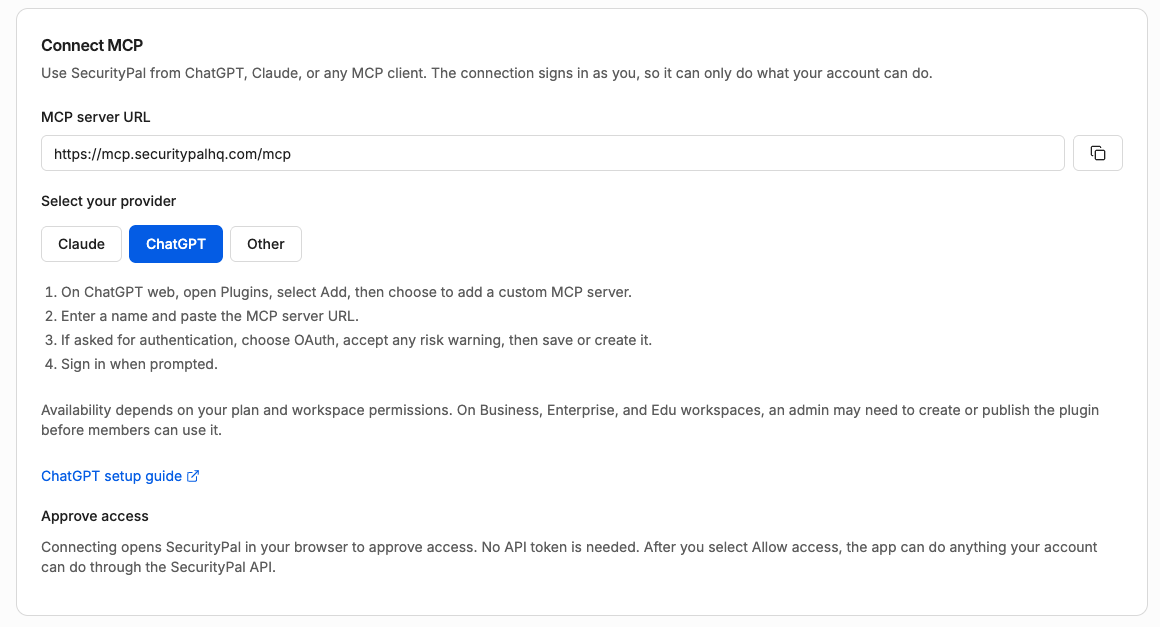
- On ChatGPT web, open Plugins, select Add, then choose Add custom MCP server.
- Enter a name and paste the SecurityPal MCP server URL.
- If prompted for authentication, select OAuth, review and accept any risk warning, then save or create the connection.
- Sign in to SecurityPal when prompted, then select Allow access.
Availability depends on your plan and workspace permissions. On Business, Enterprise, and Edu workspaces, an administrator may need to create or publish the plugin before members can use it. ChatGPT setup guide.
Other compatible MCP clients
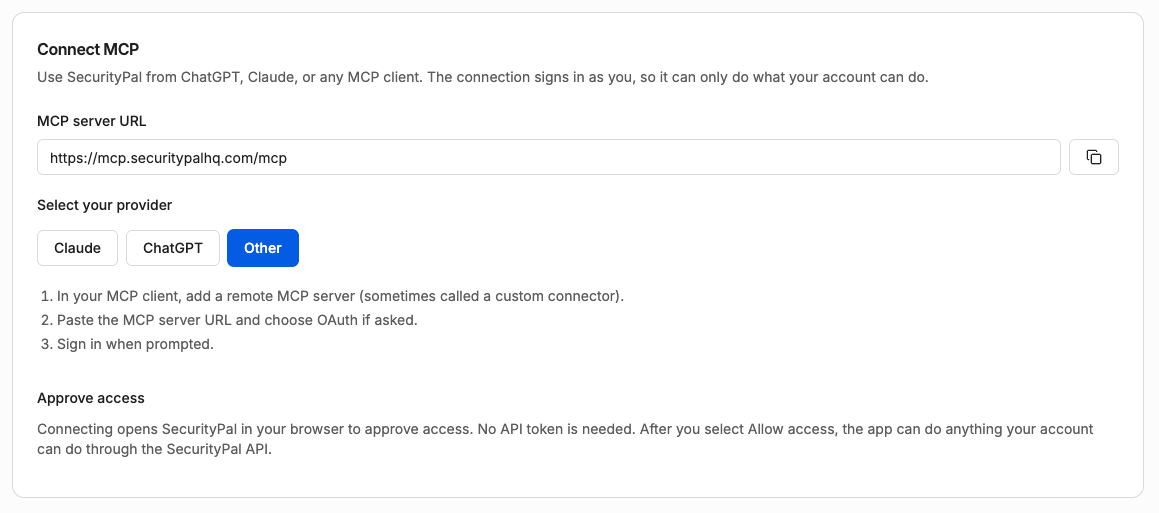
- In your MCP client, add a remote MCP server, sometimes called a custom connector.
- Paste the SecurityPal MCP server URL and select OAuth if prompted.
- Sign in to SecurityPal when prompted, then select Allow access.
How access works
When you connect your assistant, SecurityPal opens in your browser and asks you to approve access. The connector then uses your existing SecurityPal permissions.
You can review your connections under Connected apps in API Settings. Company administrators can review connections across the company.
Get started
Once connected, ask your assistant to use SecurityPal to find an answer and its sources, check your open tasks, or review a Trust Center request.
Open Settings → API Settings → Connect MCP in SecurityPal to get started. Open SecurityPal API Settings.
New to SecurityPal? Get in touch.